
Starter
A few recordings a month
$11.90/ mo
800 credits / month
- 800 min transcript / 400 min notes
- or 200 min with frames
- 150 GB media storage
- Export MD · TXT · SRT · VTT

Upload a video or audio file and get a transcript you can edit, search and export, with optional summaries and section notes.
80 free credits across 3 files a week · up to 80 min of transcripts
Real results — open one
Explore a long interview and a short product tutorial. Preview an excerpt, then open the complete transcript and notes.
Open the full example to listen to the recording and follow the timestamps.
And we are live. Hello everyone, and welcome. My name is Shani Evenstein, and I'm an educator and researcher from Tel Aviv University.
On October this year, I've opened a new elective course at Tel Aviv University called From Web 2.0 to Web 3.0: From Wikipedia to Wikidata.
This is basically the first course in the world to feature Wikidata, and as the project now just turned six years, I'm very excited to host today a special interview with a very special guest.
Denny, would you please like to introduce yourselves to our students and global audience?
Hello, I'm Denny Vrandečić. I'm the founder of Wikidata,
Excerpt · 1:00:15 in the full recording
Video to text means turning the speech in a video into written words. A video transcriber listens to the audio track, writes down what was said, and marks when each line starts, so you can read a recording instead of watching it again.
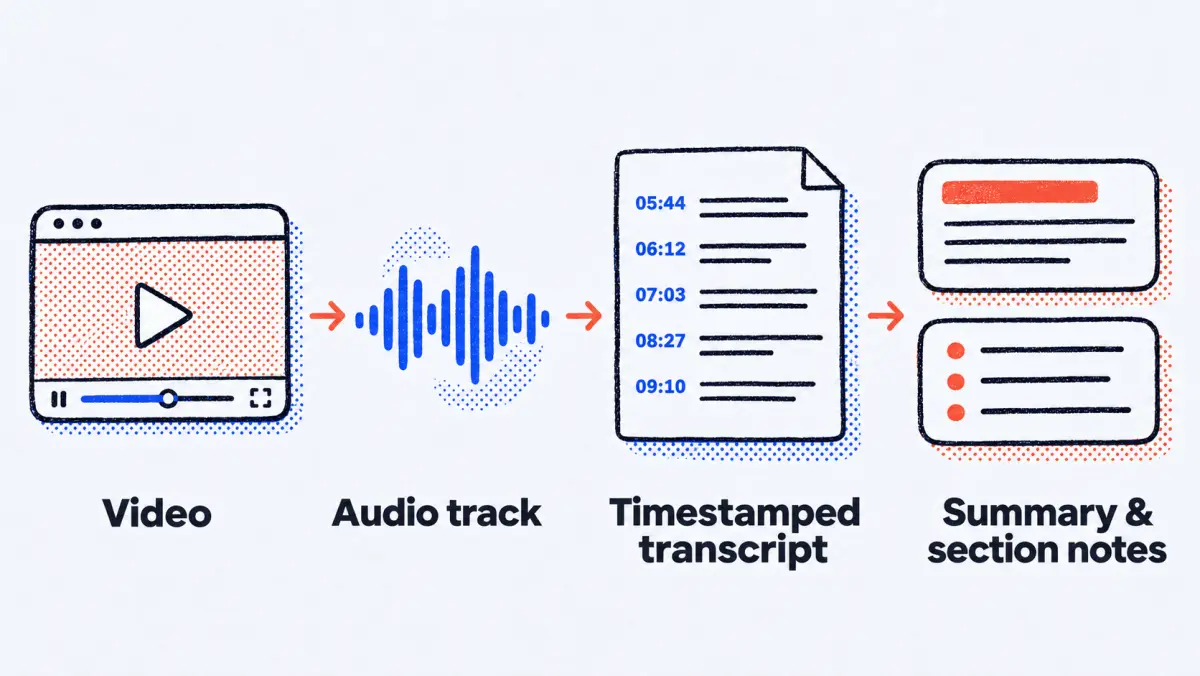
Three steps to turn a video to text. You see the cost before anything is processed.

Drag in an MP4, MOV or WebM file, or an audio file. ClipNoter shows the estimated cost and verifies the duration. If your credits cover it, processing starts automatically; if not, you choose first: process only the first part, switch to a lower-cost option or add credits.

Transcript only gives you the timestamped video transcript. Notes only adds a summary and section notes; Notes with frames also adds relevant images from the video. Pick a language or keep automatic detection, check the range and estimated credits, then start.

Open the result. Play any line to check it against the audio, fix what was misheard, and download the video transcript as TXT, SRT or VTT, or the notes as Markdown.
Every line of the video transcript stays tied to the recording, so you can trust what you quote.
Each line of your video transcription starts with the time it was said. Click it to hear the original before you use the words.
The language is detected automatically, or pick one of eight before you start.
Names, product terms and accents are where any video transcription slips. Fix a line in place and your TXT, SRT and VTT downloads match.
Need study notes rather than a video transcript? See video to notes
Every video to text result can leave ClipNoter in four formats. Choose by what you will do next.

The video transcript as plain text, with a timestamp on each line. Paste it into a document, search it, or pull quotes for an article.

Timed captions for a video editor, an upload to a video platform, or a web player. SRT is the most widely accepted; VTT is the web standard.

The summary and section notes, ready to paste into any Markdown editor. With frames, download a ZIP that includes the images.
Download Markdown and the image ZIP alongside your transcript and notes.

Turn a recorded customer or podcast interview into text, search for the quote you need, and check it against the audio before you cite it.
Audio to text
Make a screen recording searchable. Each step in the video transcript has a time, so teammates can jump straight back to it.
MP4 to transcript
Transcribe a recorded lecture video to text and review it by section instead of rewatching it. Choose Notes with frames to keep the slides next to the notes.
Lecture to notesChoose credits or personal Unlimited. Save up to 35% with annual billing.
Not ready to subscribe? One-time credit packs are available too.See all pricing

 Only you
Files, transcripts and notes are visible only to your account.
Deleting a file from your library queues cleanup of its files, transcript and notes. Cleanup may take time.
If the output required by your selected mode is still incomplete after automatic retries, processing credits return to their original sources and expiry dates. Expired or retired credits do not become available again.
Other questions?Contact us
80 free credits every week, usable across up to 3 tasks: up to 80 min of transcripts, 40 min of Notes only or 20 min of Notes with frames. If your credits cover a file, it starts automatically.